
2025. 8. 22. 22:59ㆍDevelopers 공간 [Shorts]/Software Basic
<분류>
A. 수단
- OS/Platform/Tool : Linux, Kubernetes(k8s), Docker, AWS
- Package Manager : node.js, yarn, brew,
- Compiler/Transpillar : React, Nvcc, gcc/g++, Babel, Flutter
- Module Bundler : React, Webpack, Parcel
B. 언어
- C/C++, python, Javacsript, Typescript, Go-Lang, CUDA, Dart, HTML/CSS
C. 라이브러리 및 프레임워크 및 SDK
- OpenCV, OpenCL, FastAPI, PyTorch, Tensorflow, Nsight
1. What? (현상)
GPU를 활용하고 있는 서버에서 GUI를 활용해 부팅하다가, 갑자기 어느 날 Resolution이 낮아진 상태로 부팅이되고 설정에 들어가니 Resolution 변경이 안됩니다.
그리고 nvidia-smi 명령어를 해보니 아래와 같이 실행이 안됩니다.
nvidia-smi has failed because it couldn't communicate with the Nvidia driver...
또한 아래 명령어를 하니 아무것도 안나오네요.
** lsmod는 리눅스 커널 모듈(module) 정보를 보기 위한 명령어입니다.
lsmod | grep nvidia
이는 재부팅 하면서 커널 업데이트 혹은 Driver 충돌 등의 이유로 Nvidia Driver가 깨진 상황입니다.
이를 해결하는 과정을 살펴보겠습니다.
2. Why? (원인)
- X
3. How? (해결책)
먼저 권장되는 드라이버 버전을 아래의 명령어로 확인해봅니다.
ubuntu-drivers devices== /sys/devices/pci0000:00/0000:00:01.0/0000:01:00.0 ==
modalias : pci:v000010DEd00001B06sv000010DEsd0000120Fbc03sc00i00
vendor : NVIDIA Corporation model : GP102 [GeForce GTX 1080 Ti]
driver : nvidia-driver-575 - distro non-free recommended
driver : nvidia-driver-570-server - distro non-free
driver : nvidia-driver-470 - distro non-free
driver : nvidia-driver-575-server - distro non-free
driver : nvidia-driver-535 - distro non-free
driver : nvidia-driver-570 - distro non-free
driver : nvidia-driver-470-server - distro non-free
driver : nvidia-driver-550 - distro non-free
driver : nvidia-driver-535-server - distro non-free
driver : xserver-xorg-video-nouveau - distro free builtin
** Driver 버전에 대한 이해 기초 : https://tkayyoo.tistory.com/17
이제 드라이버를 설치해보겠습니다.
아래 링크 처럼 CLI기반으로 혹은 Nvidia Driver를 위한 파일을 직접 다운 받아서 설치할 수도 있지만 이번 글에서는 가장 간단하게 아래와 같이 설치하겠습니다.
** https://tkayyoo.tistory.com/17#tktag10
sudo apt update
sudo apt install --reinstall nvidia-driver-575
이번엔 리눅스에 기본적으로 탑재된 nouveau driver와 충돌하는 것을 방지하기 위해서, nouveau driver를 블랙리스트 처리해줍니다.
sudo bash -c 'echo "blacklist nouveau" >> /etc/modprobe.d/blacklist-nouveau.conf'
sudo update-initramfs -u
자 이제 리부팅 하면 정상적으로 동작합니다.
sudo reboot
혹시 모르니 리눅스의 자동 업데이트도 꺼보겠습니다.
unattended-upgrades는 Ubuntu system 의 최신 보안 패치 및 다른 패키지들의 업데이트를 자동으로 수행하고 시스템을 유지하는 서비스입니다.
이 서비스에서 제공하는 기능을 활용해 업데이트를 꺼줄 수 있습니다.
아래는 활용하는 Linux에 GUI가 있을 때 사용하는 방법입니다. 아래와 같은 명령어를 준 뒤, "NO"를 선택해줍니다.
sudo dpkg-reconfigure unattended-upgrades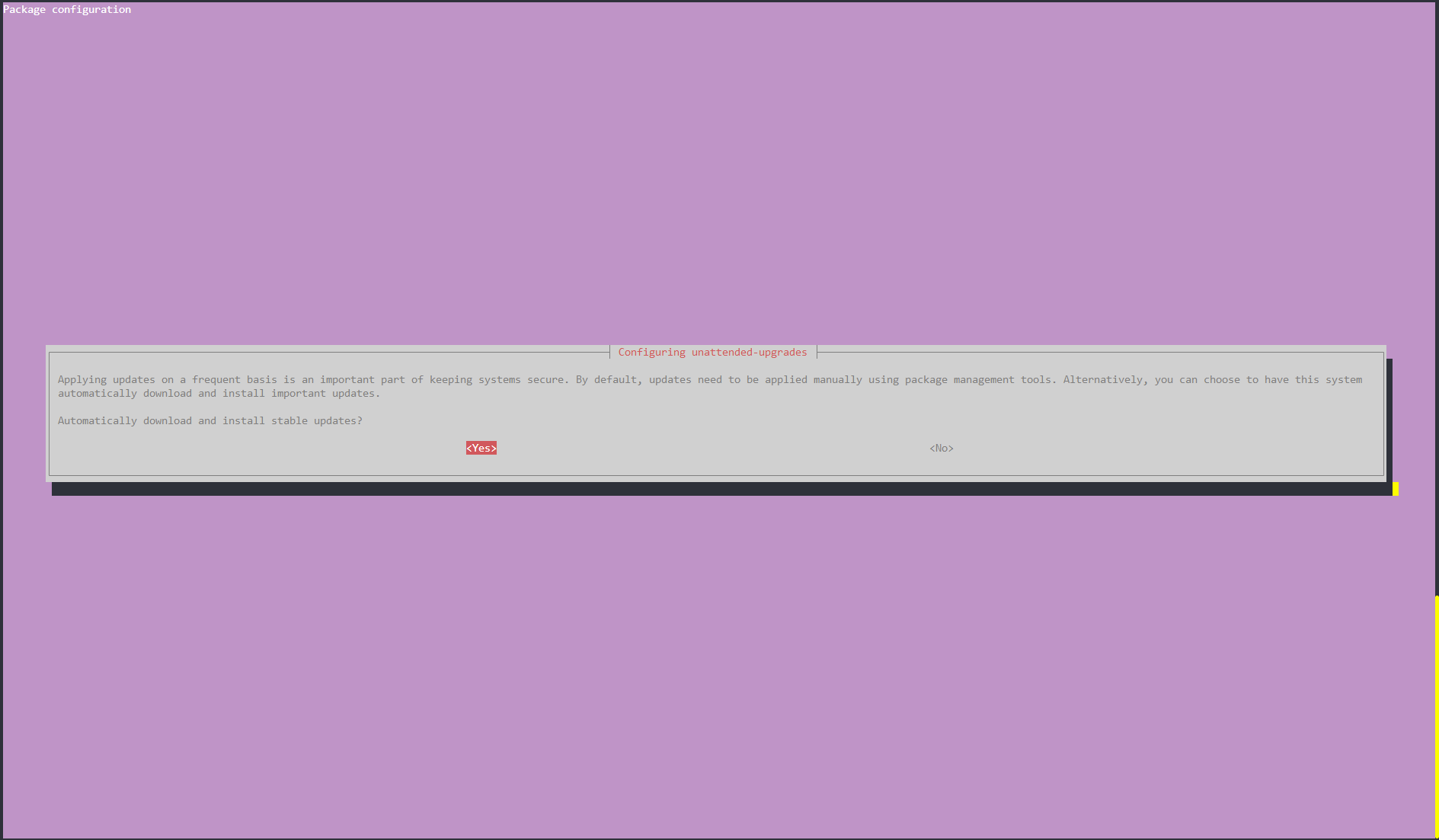
혹시 GUI가 없다면 /etc/apt/apt.conf.d/20auto-upgrades를 직접 아래와 같이 수정해줍니다.
APT::Periodic::Update-Package-Lists "0";
APT::Periodic::Unattended-Upgrade "0";
결과는 아래와 같이 확인합니다.
cat /etc/apt/apt.conf.d/20auto-upgradesAPT::Periodic::Update-Package-Lists "0";
APT::Periodic::Unattended-Upgrade "0";
이번엔 unattended-upgrades를 물리적으로 실행되지 않도록 차단해버리는 방법은 아래와 같습니다.
# Disable Service
sudo systemctl stop unattended-upgrades
sudo systemctl disable unattended-upgrades

# Disable related timer and related service
sudo systemctl stop apt-daily.timer
sudo systemctl disable apt-daily.timer
sudo systemctl disable apt-daily.service

sudo systemctl stop apt-daily-upgrade.timer
sudo systemctl disable apt-daily-upgrade.timer
sudo systemctl disable apt-daily-upgrade.service
혹은 아예 unattended-upgrades를 지워버리는 것도 방법입니다.
sudo apt-get purge unattended-upgrades
혹시나 unattended-upgrades를 지우지 않고 싶으신 이유가 있다면 /etc/apt/apt.conf.d/50unattended-upgrades에서 아래를 주석에서 풀어주면 linux-로 시작하는 "linux-image-generic", "linux-headers-generic" 등의 패키지가 자동 업데이트 되지 않도록 블랙리스트해줍니다.
Unattended-Upgrade::Package-Blacklist {
"linux-"
}
https://chhanz88.github.io/post/2022-05-11-ubuntu-unattended-upgrades/
https://www.skyer9.pe.kr/wordpress/?p=8114
'Developers 공간 [Shorts] > Software Basic' 카테고리의 다른 글
| [Git] 현재 commit과의 다른점에 대해 Patch 남겨두기 (0) | 2025.09.04 |
|---|---|
| [Bash] Ubuntu 설치 하기 (1) | 2025.07.27 |
| [PyTorch] 학습시 Gradient Exploding을 막기 위한 몇 가지 조치 (0) | 2025.07.24 |
| [Bash] Ubuntu에 /etc/fstab 셋팅하기 (0) | 2025.07.05 |
| [Bash] Ubuntu에 Docker 설치하기 (0) | 2025.06.29 |