
2025. 5. 7. 07:35ㆍDevelopers 공간 [Basic]/Backend
보통 Firebase의 Firestore과 같은 방법으로 서버리스 백엔드로 프론트를 구축하다 보면, 대부분은 스키마로 해결이 되지만 아래와 같은 사례는 해결이되지 않기도 합니다.
- 상황1. 특정 Document에 수정이 되었을때, 유기적인 스키마로 인해 다른 Document들이 수정되어야한다.
- nickname 변경
- 회원 탈퇴
- 알람 혹은 푸시
- 상황2. 긴 Array나 Documents들이 저장되어있을 때, 이들에 대해 모두 요청해서 처리하기는 힘들고 주기적으로 백그라운드로 업데이트해 놓아야한다.
- 모두 요청하고 캐싱한다면? 메모리가 너무 많이 필요하다
- 매번 요청해서 받아낸다면? 쿼리 수가 너무 많이 필요하다.
- 상황3. 어떤 Document에 대해 작업 Schedule이 자동으로 적용되어야한다.
- 백업 필요
- 유효 기간 (특정 기간 이후 해당 Document를 삭제해야할 때)
이런 경우 Cloud Functions을 활용하면되는데, 이에 대해 설명하고자 합니다.
<구성>
1. Cloud Functions과 초기화
a. Firebase에 Cloud Functions셋팅하기
b. Flutter에 Cloud Functions 셋팅하기
c. Linux에 Firebase 셋팅하고 Deploy하기
2. Cloud Functions 구현하기
a. 직접 함수 호출
b. 백그라운드 트리거
3. Cloud Functions Pricing
글효과 분류1 : 코드
글효과 분류2 : 폴더/파일
글효과 분류3 : 용어설명
글효과 분류4 : 글 내 참조
글효과 분류5 : 글 내 참조2
글효과 분류6 : 글 내 참조3
1. Cloud Functions과 초기화
시작 하기에 앞서, Firebase와 Flutter를 활용하기 위해 셋팅하는 과정을 살펴보겠습니다.
a. Firebase에 Cloud Functions셋팅하기
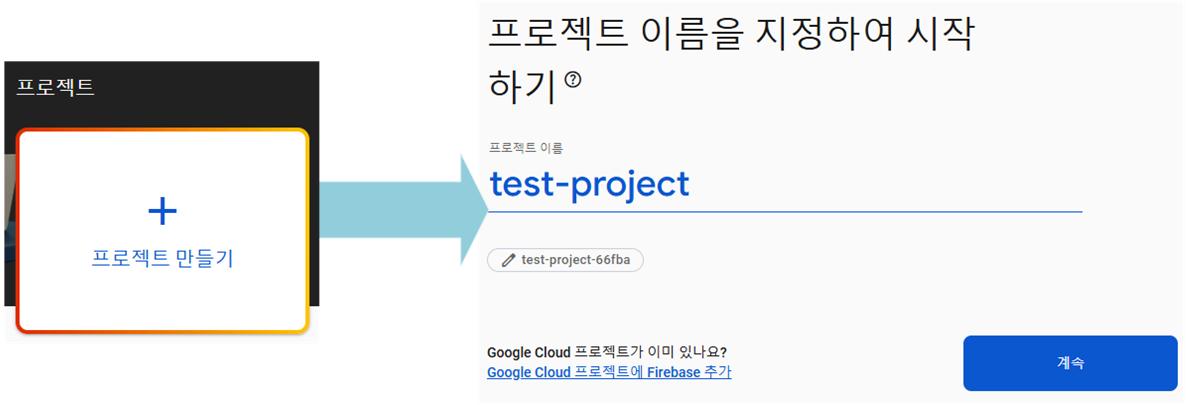
먼저, Firebase 콘솔(https://console.firebase.google.com)에 들어가 Firestore를 셋팅하기 위한 프로젝트를 만들어줍니다. Analytics를 사용하려면 선택적으로 추가할 수 있습니다.
이제 프로젝트에 들어가 Cloud Functions 백엔드를 만들어보겠습니다. 단, 이는 Blaze요금제로 업그레이드 한 뒤에 가능합니다.
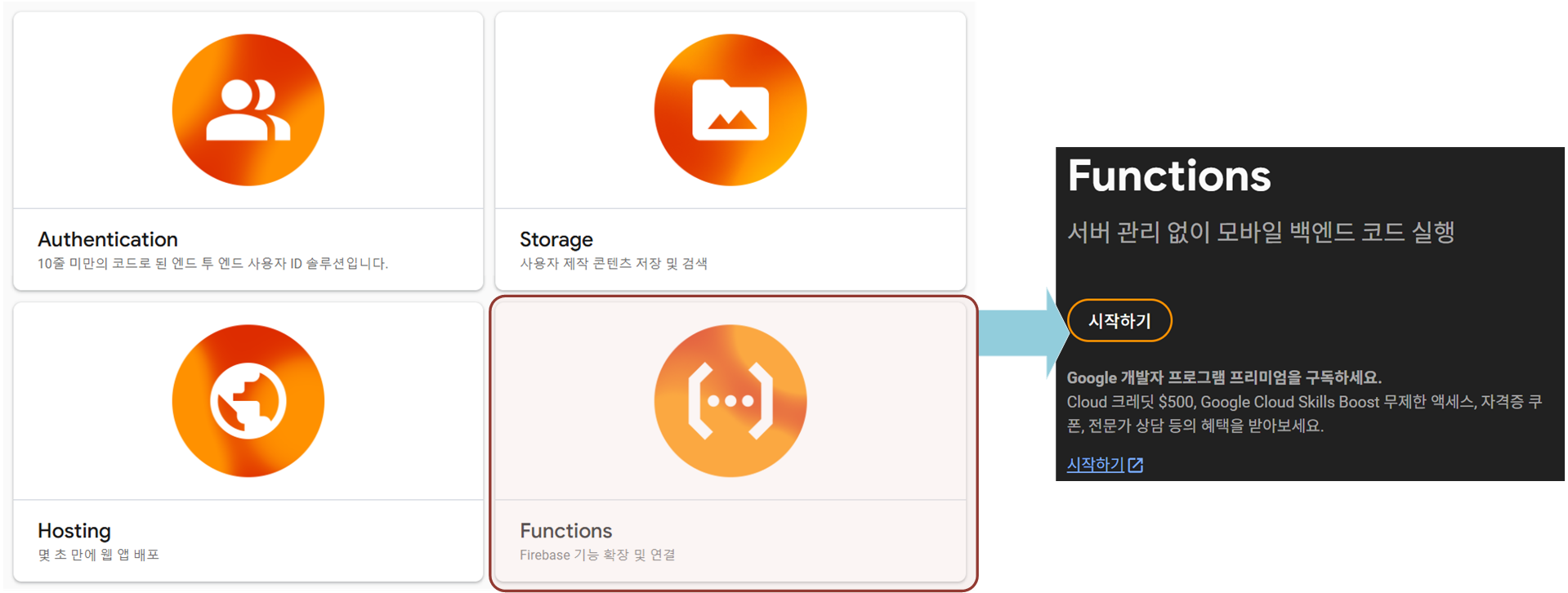
자 이제 생성되었고, 배포를 대기 중입니다.

b. Flutter에 Cloud Functions 셋팅하기
Firebase를 활용하기 위해서는 Flutter를 작업하는 공간인 Mac이나 별도의 Linux에서 보통 작업할 수 있습니다.
이번 챕터에서는 Flutter를 작업하는 공간에서 Firebase를 활용하기 위해 셋팅하는 방법을 먼저 살펴보겠습니다.
작업중인 프로젝트의 콘솔에 들어가 Firebase를 셋팅해 줄 것입니다. 먼저 Firebase CLI를 설치해줍니다. 아래는 Mac이나 Linux에서 설치하는 명령어 둘다 표시했습니다.
#if Linux
sudo apt-get install npm

npm install -g firebase-tools

# Check
firebase --version
** Mac에서 curl로 설치했을 때 다시 설치하기
----------------------------------------------------------
<Firebase 재설치 방법>
Mac에서 firebase를 설치할 때 방법은 아래와 같이 두가지가 있습니다.
# Install1
curl -sL https://firebase.tools | bash

# Install2
npm install -g firebase-tools
위 Install1으로 설치한 경우 아래와 같은 결과가 나와 확인 가능합니다.
which firebase/usr/local/bin/firebase
Install2으로 설치한 경우 아래와 같이 했을 때는 결과에 firebase-tools가 포함되어 표시됩니다.
npm ls -g
npm list -g
npm list -global
근데, Install1으로 설치된 경우, 문제가 발생할 수 있기 때문에 이 때는 아래와 같이 지우고 Install2로 다시 설치합니다.
# Upgrade
curl -sL https://firebase.tools | upgrade=true bash

# Delete
rm -rf $(which firebase)
rm -rf ~/.cache/firebase/tools
# Check list : ~/.bashrc, ~/.zshrc, ~/.zshenv, ~/.bash_profile, ~/.profile
혹시나 이걸로도 해결이 안된다면 npm을 활용해 업그레이드 해줍니다.
npm install -g firebase-functions@latest-----------------------------------------------------------
** firebase CLI 설치 후 node.js 버전 문제가 발생시
-----------------------------------------------------------
<node.js 버전 문제시>
실행시 아래와 같은 문제가 발생할 수도 있습니다.
firebase CLI v14.11.2 is incompatible with Node.js v18.19.1. Please upgrade Node.js to version >20.0.0 || >=22.0.0
위를 해결하기 위해 Node.js를 20 이상 (또는 22 이상)으로 업그레이드해야 합니다.
# Check
node -v

# Linux : remove node and reinstall(npm)
sudo apt-get --purge remove nodejs
sudo apt install npm

# Mac : remove node and reinstall(npm)
brew uninstall node
sudo rm -rf /usr/local/bin/node
sudo rm -rf /usr/local/bin/npm
sudo rm -rf /usr/local/include/node
sudo rm -rf /usr/local/lib/node_modules
sudo rm -rf ~/.npm
sudo rm -rf ~/.nvm     # # If use nvm
sudo rm -rf /usr/local/n  # If use n
# Go to https://nodejs.org/ko/download/

sudo npm install -g n
sudo n 20
-----------------------------------------------------------
다음으로 Firebase에 로그인을 해줍니다.
firebase login

# Check
firebase login:list
이제 원하는 폴더로 가서 아래와 같이 프로젝트를 초기화합니다.
firebase init functions
그 과정에서 아래와 같이 사용할 언어를 선택할 수 있습니다.
** 혹시나 Python이 선택이 안된다면 Firebase CLI 버전이 최신인지 확인해야합니다.
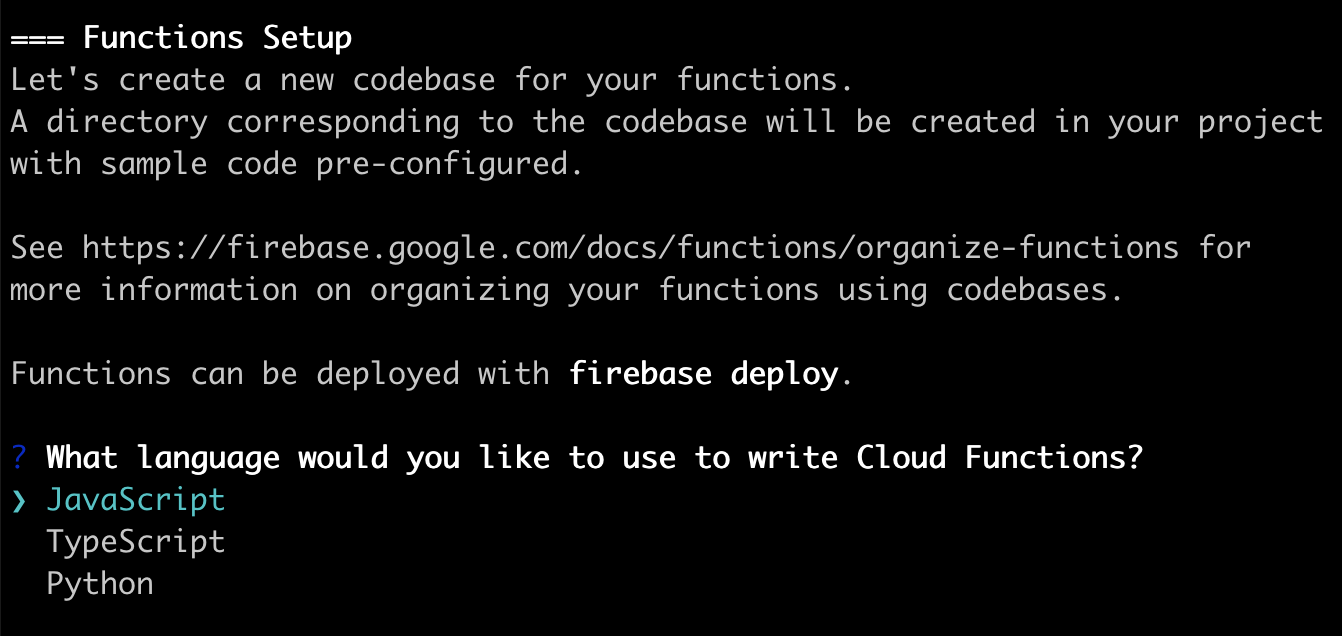
아래는 TypeScript를 선택했을 때 생기는 파일들이고,
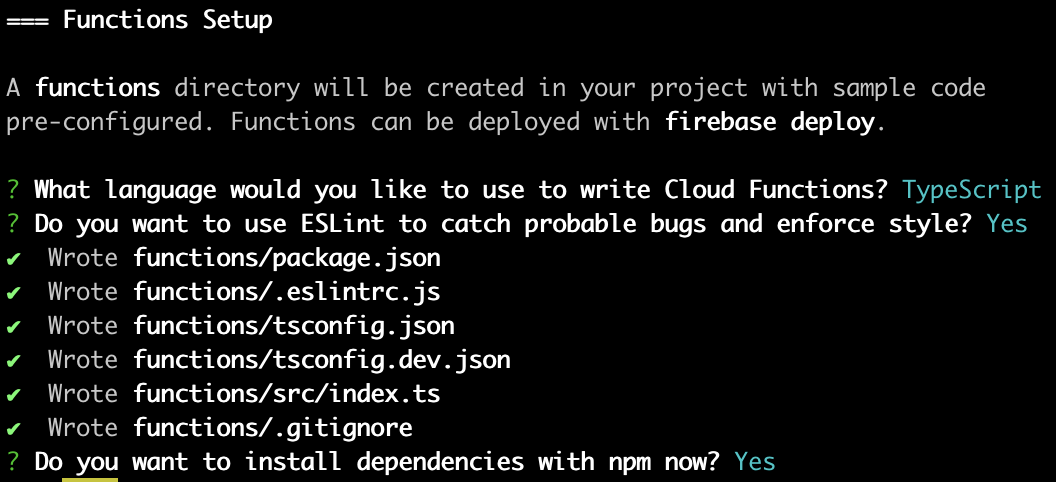
아래는 Python을 선택했을 때 생기는 파일들입니다.
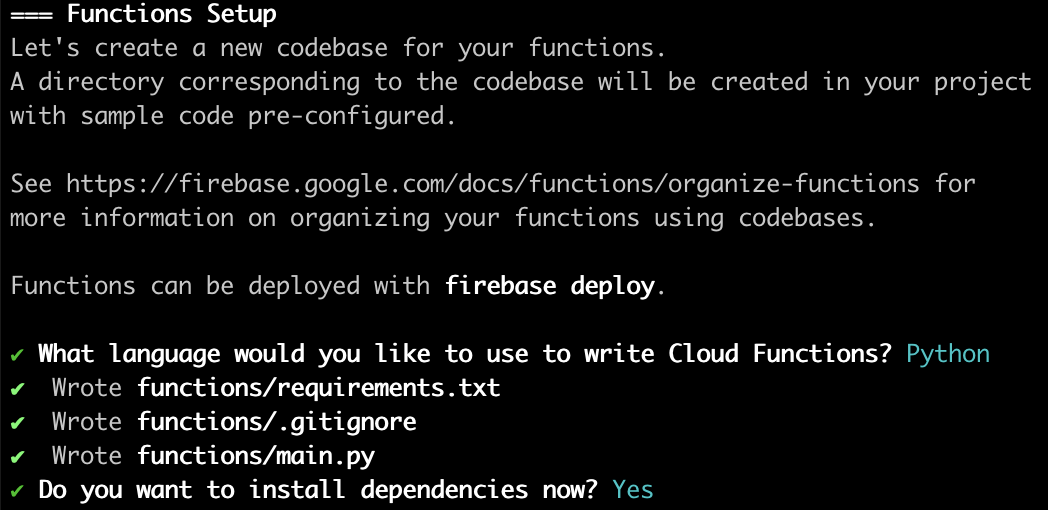
필자는 Python으로 진행하겠습니다.
c. Linux에 Firebase 셋팅하고 Deploy하기
위와 같이 Flutter를 작업하는 공간에서 셋팅한 뒤에 Deploy를 진행해도 됩니다.
하지만 이번 챕터에서는 Linux에서 셋팅한 경우로 바꿔서, Emulator로 Deploy하는 과정과 실제 함수를 Deploy하는 과정을 함께 설명해보려고 합니다.
먼저, Emulator를 셋팅하는 과정을 설명해보겠습니다.
Emulator를 활용하면 Firebase 프로젝트에 배포하는 대신 로컬 머신에서 앱을 빌드하고 테스트할 수 있습니다
먼저 node.js를 설치해야합니다.
# Check
node -v

# Linux : remove node and reinstall(npm)
sudo apt-get --purge remove nodejs
sudo apt install npm

# Mac : remove node and reinstall(npm)
brew uninstall node
sudo rm -rf /usr/local/bin/node
sudo rm -rf /usr/local/bin/npm
sudo rm -rf /usr/local/include/node
sudo rm -rf /usr/local/lib/node_modules
sudo rm -rf ~/.npm
sudo rm -rf ~/.nvm     # # If use nvm
sudo rm -rf /usr/local/n  # If use n
# Go to https://nodejs.org/ko/download/

sudo npm install -g n
sudo n 20
단, firestore과의 연동을 테스트하려면 java도 설치해주어야합니다.
** Java JDK 버전 21이상 설치 권장
# Linux
sudo apt-get install openjdk-21-jre-headless
그 다음 아래와 같이 명령어를 실행해 환경을 셋팅해줍니다.
firebase init emulators
그 다음 firebase.json 내용을 아래와 같이 수정해줍니다. ui는 실제 firestore 가상환경 작업을 위한 UI이고, logging은 functions의 내용을 확인하기 위한 공간입니다.
** 주의 할 것은 아래 설명할 firebase.json에 명시된 python 버전이 현재와 같아야하며, host를 외부에서 볼 수 있도록 0.0.0.0으로 서빙했습니다.
** https://firebase.google.com/docs/emulator-suite/install_and_configure?hl=ko
{
  "functions": [
    {
      "source": "functions",
      "codebase": "default",
      "ignore": [
        "venv",
        ".git",
        "firebase-debug.log",
        "firebase-debug.*.log",
        "*.local"
      ],
      "runtime": "python312"
    }
  ],
  "emulators": {
    "ui": {
      "enabled": true,
      "host": "0.0.0.0",
      "port": 4000
    },
    "hub": {
      "host": "0.0.0.0",
      "port": 4400
    },
    "logging": {
      "host": "0.0.0.0",
      "port": 4500
    },
    "singleProjectMode": true,
    "functions": {
      "host": "0.0.0.0",
      "port": 5001
    },
    "firestore": {
      "host": "0.0.0.0",
      "port": 8080
    },
  }
}
이제 아래와 같은 명령어로 Emulator를 실행합니다.
# functions only
firebase emulators:start --only functions

# functions + firestore
firebase emulators:start --only functions,firestore

# firestore with save & load
firebase emulators:start --only firestore --import ./seed --export-on-exit --project test-local
이제 functions는 동작할 텐데, UI를 들어 가고 싶으면 내부 망에서는 "127.0.0.1:4000" 외부망에서는 "외부IP:4000"으로 들어가면 됩니다.
주의할 것은 이 때 실행되는 firestore 혹은 functions emulator는 실제 우리가 사용할 firestore와는 다른 임시 공간입니다.
이번엔 실제 함수를 deploy하는 과정을 살펴보겠습니다.
deploy하는 방법은 아래와 같습니다.
firebase deploy --only functions

# Check
firebase functions:list
** Typescript 및 Javascript선택시 Node.js 버전 문제 발생시
-----------------------------------------------------------
<Typescript 및 Javascript선택시 Node.js 버전 중요>
혹시 실행했는데 아래와 같은 에러가난다면 이는 node.js중에 지원되는 버전이 안맞아서 그렇습니다.
Error: Runtime Node.js 16 was decommissioned on 2020-00-00. To deploy you must first upgrade your runtime version.
아래 링크를 보면 현재 Runtime 지원중인 node.js의 버전이 명시되어있습니다.
** https://cloud.google.com/functions/docs/runtime-support?hl=ko
현재는 18버전이 지원이 된다고하네요.
먼저 Typescript로 설정했을 때는 아래와 같은 폴더 구조로 프로젝트를 만듭니다.
myproject
+- .firebaserc : 프로젝트에서 firebase를 활용하게 해주는 파일
+- firebase.json : 프로젝트를 설명하는 파일
+- functions/ : cloud functions 코드를 작성할 공간
+- .eslintrc.json : JavaScript linting를 사용하기 위한 선택 파일
+- package.json : npm 패키지들을 담고 있는 파일
+- node_modules/ : package.json에 선언된 dependencies들이 설치된 폴더
+- tsconfig.json : 프로젝트 컴파일하는 데 필요한 루트 파일과 컴파일러 옵션을 지정해놓은 파일
+- src/ : Cloud Functions 코드가 구현된 폴더
+- index.ts : 메인 소스 파일
이 때, 위의 프로젝트의 functions/package.json에서 아래와 같이 바꾸어줍니다.
"engines": {
"node": "18"
}
-----------------------------------------------------------
** Artifact Registry 정책 관련해 꼭 더보기를 참조하시길 바랍니다.
-----------------------------------------------------------
<배포 시 Artifact Registry 삭제 정책>
Firebase Functions을 배포하면, Cloud Build가 내부적으로 Docker 컨테이너 이미지를 생성해서 Artifact Registry(컨테이너 저장소)에 저장합니다.
** https://cloud.google.com/functions/docs/building?hl=ko\
** https://cloud.google.com/artifact-registry/docs/repositories/cleanup-policy?hl=ko
이 저장소는 지역마다 관리되며, 기본적으로는 us-central1에 생깁니다.
따라서 실행할 때 아래와 같은 설정을 요구할 것입니다.
⚠ functions: No cleanup policy detected for repositories in us-central1. This may result in a small monthly bill as container images accumulate over time. ? How many days do you want to keep container images before they're deleted? (1)
즉, us-central1 위치의 Artifact Registry에 생성된 이미지들이 무한정 쌓이고 있으니, 자동 정리 정책(cleanup policy)을 설정해달라는 것입니다.
위에 자동으로 입력되는 1은, "1일 지난 컨테이너 이미지는 자동 삭제"된다는 뜻이고, 실제로는 7일~30일 정도 유지해도 충분하다고 합니다.
** 혹은 콘솔을 통해 직접 설정할 수 있습니다. console.cloud.google.com
그래서 us-central1 위치에 우리의 이미지가 저장되는 것은 Instance를 확장할 때마다 us-central1에서 이미지를 pull 하면서 cross-region egress 비용이 발생 할 것 같습니다.
아래 페이지에 보면 함수가 실행되는 리전을 선택할 수 있는 방법이 있어 보이지만, 아래 페이지의 "함수 실행 리전"과 "Artifact Registry 리전"은 다릅니다.
** https://firebase.google.com/docs/functions/locations?hl=ko
즉, 우리가 사용하는 firebase deploy는 내부적으로 gcloud functions deploy를 사용하기 때문에, firebase를 활용하면 먼저 이미지를 us-central1 위치의 이미지를 pull해서 쓸 수 밖에 없다는 뜻이죠.
그럼 Artifact Registry의 위치를 내 리전으로 설정하는 것은 어떻게 할까요? 아래와 같이 gcloud의 region 옵션을 활용해서 배포하는 방법이 있습니다.
** https://cloud.google.com/sdk/docs/install?hl=ko
** https://cloud.google.com/sdk/docs/downloads-interactive?hl=ko
# Install
curl https://sdk.cloud.google.com | bash
gcloud init

# Check
gcloud version

# Usage
gcloud functions deploy helloAsia \
  --region=asia-northeast3 \
  --runtime=nodejs18 \
  --source=. \
  --entry-point=helloWorld \
  --trigger-http \
  --allow-unauthenticated \
  --docker-registry=artifact-registry
하지만 이번 글에서는 그냥 Artifact Registry위치는 us-central1로 사용하기로 합니다.
-----------------------------------------------------------
** 코드 디버깅 할때 Google Auth Exception이 나는 경우
-----------------------------------------------------------
<Google Auth Exception>
코드는 서버에 올라가서 실행될 예정이지만, 단순히 코드가 실행되는지 확인해보기 위해 함수를 실행해보기도 합니다.
이때 아래와 같은 에러가 나면, Google Cloud API에 접근하려고 하는데 AD(Application Default Credentials)가 설정되지 않아서 생기는 에러입니다.
google.auth.exceptions.DefaultCredentialsError: Your defaultcredentials were not found. To set up Application Default Credentials, see ...
사실상 서버에서만 동작하면 되므로 gcloud를 설치할 필요는 없지만 보통은 디버깅 때문에 설치합니다. 아래 링크를 통해 설치후, 아래 코드를 실행해주면 위 에러는 사라집니다.
** https://cloud.google.com/sdk/docs/install?hl=ko#mac
gcloud init

gcloud auth application-default login
-----------------------------------------------------------
프로젝트를 배포 후에, 해당 프로젝트를 지우거나 deploy된 함수들을 지우려면 로컬에서만 지우는 것은 의미가 없고 아래와 같은 함수를 통해 Firebase Console의 Functions도 지워줘야합니다.
firebase functions:delete <functionName> --region <region>

firebase functions:delete '*' --force
참고로 Firebase와 상호작용하는 Cloud Functions에는 두 가지 버전이 있습니다.
| 기능 | Cloud Functions (1세대) | Cloud Functions (2세대) |
| 이미지 레지스트리 | Container Registry 혹은 Artifact Registry |
Artifact Registry |
| 요청 시간 종료 | 최대 9분 | HTTP 트리거 함수의 경우 최대 60분 이벤트로 트리거되는 함수의 경우 최대 9분 |
| 인스턴스 크기 | 최대 8GB RAM(vCPU 2개) | 최대 16GiB RAM(vCPU 4개) |
| 동시 실행 | 함수 인스턴스당 동시 요청 1개 | 함수 인스턴스당 동시 요청 최대 1,000개 |
2세대가 더 좋아보여서 가능하면 2세대를 사용하는 것이 좋을 것 같습니다.
Node.js를 활용하는 경우, function을 구현할 때 아래와 같이 위와 같은 세대를 구분하지만 Python은 명확하게 구현에서 나뉘지는 않는 것 같습니다.
# JS v1
const functions = require('firebase-functions/v1');

# JS v2
const {onRequest} = require("firebase-functions/v2/https");
const {onDocumentCreated} = require("firebase-functions/v2/firestore");
이렇게 배포된 함수의 세대를 구분하는 방법은 아래와 같습니다.
gcloud functions describe FUNCTION_NAME --region=REGION

firebase functions:describe FUNCTION_NAME
2. Cloud Functions 구현하기
위와 같이 환경이 준비되면, 아래와 같은 폴더 구조로 프로젝트를 만듭니다.
myproject
+- .firebaserc : 프로젝트에서 firebase를 활용하게 해주는 파일
+- firebase.json : 프로젝트를 설명하는 파일
+- functions/ : cloud functions 코드를 작성할 공간
+- requirements.txt : 현재 개발 환경(python)에 pip를 통해 설치된 모든 패키지 목록이 버전과 함께 기록
+- venv/ : 설치된 가상 환경 패키지들
+- main.py : 메인 소스 파일
main.py 파일에는 아래와 같이 초기화 한뒤 각각의 함수를 import 해주면 됩니다.
# Welcome to Cloud Functions for Firebase for Python!
# To get started, simply uncomment the below code or create your own.
# Deploy with `firebase deploy`

from firebase_admin import initialize_app

initialize_app()

from callback_functions import on_appuser_updated, on_appuser_created, on_appuser_deleted
from request_http import request1, request2
** firestore에서 사용하는 자료구조에 대해 미리 궁금하시면 아래 더보기를 참조하세요
-----------------------------------------------------------
<firestore 자료구조>
미리 알고 있으면 좋을 firestore의 자료구조는 아래와 같습니다.
- DocumentReference : 문서의 위치(주소)를 가리키는 객체로, 아직 읽은 상태는 아니라 ref.get() 을 하면 실제 데이터를 가져올 수 있으며, 이외 .set(), .update(), .delete() 같은 쓰기 작업에 쓰입니다.
- DocumentSnapshot : 실제로 읽어온 문서의 스냅샷(데이터 + 메타데이터)로, doc.to_dict(), doc.id, doc.exists, doc.update_time 같은 속성을 조회할 수 있습니다.
- .collection_group("COLNAME") : 일반적인 db.collection("COLNAME")가 1레벨 collection에 대해서만 조회하는 것과 달리, 모든 레벨의 collection에 대해 조회하는 방법입니다.
ex) db.collection_group("comments").where("created_id","==", REAL_ID) : subcollection을 포함한 모든 "comments"라는 collection 중에 REAL_ID와 created_id가 일치하는 모든 document들
# DocumentReference
ref = db.collection("users").document("alice")  # 참조만 있음

# DocumentSnapshot
snap = ref.get()         # DocumentSnapshot 반환
ref = snap.reference  # DocumentReference 얻기
DocumentReference에 대해 사용가능한 함수들
- set() : 지정한 문서 ID에 데이터를 write하는 방법으로, 기존 해당 ID 문서가 없으면 새로 생성하고 문서가 있으면 전체 넢어씁니다. (merge 옵션시 필드병합 가능)
- add() : 문서 ID를 지정하지 않고, 자동 생성된 ID로 문서를 write하는 방법입니다.
- stream() [read 최적화]: 여러 문서를 read 할 때 사용하며, 데이터 변경을 감지하는 실시간 리스너가 아닌 One-Shot 쿼리입니다. 하지만 일반적으로 읽는 방법보다는 lazy iterator형태의 snapshot를 받아 순회하기 때문에 메모리 효율적입니다.
- trasaction() [read-write 최적화]: Atomic Read-Write 작업을 위해, 실시간으로 데이터 변경을 감지해서 재시도하기 위한 방법입니다. 단, read할 때 transaction을 활용해야만 이 기능이 필요합니다.
- batch() [write 최적화]: 여러 쓰기를 조건 없이 묶어 원자적으로 commit하는 방법입니다.
-----------------------------------------------------------
** 필자가 아래에서 추가로 설명하지 않을 직접 구현한 함수들
-----------------------------------------------------------
<직접 구현한 필요 함수들>
실제 db를 불러와서 사용하기 위한 함수
from firebase_admin import firestore

_db = None

def get_db():
    global _db
    if _db is None:
        _db = firestore.client()
    return _db
해당 event의 데이터가 변화하기 전과 후를 비교해 달라진 것을 확인해 "old"와 "new"로 나타내주는 함수
def deep_diff(old: dict, new: dict):
    changes = {}
    keys = set(old.keys()) | set(new.keys())
    for k in keys:
        o = old.get(k, None)
        n = new.get(k, None)
        if o is None:
            changes.update({k : {"type": "added", "new": n}})
        elif n is None:
            changes.update({k : {"type": "removed", "old": o}})
        elif isinstance(o, dict) and isinstance(n, dict):
            diff = deep_diff(o, n, path)
            if diff:
                changes.update({k: diff})
        elif o != n:
            changes.update({k : {"type": "modified", "old": o, "new": n}})
    return changes
해당 document의 값을 변화하기 위한 함수들
from firebase_admin import firestore
from google.cloud import firestore as gc_firestore
from typing import Optional
from datetime import datetime, timedelta, timezone

@gc_firestore.transactional
def transaction_update_counter(transaction, doc_ref, key:str, delta:int=1):
    snap = doc_ref.get(transaction=transaction)   # 트랜잭션으로 읽기
    cur = snap.get(key) or None
    if cur==None or not isinstance(cur, int):
        print("DEBUG ERROR! : {}".format(cur))
        return;

    transaction.update(doc_ref, {key: cur + delta})  # 트랜잭션으로 쓰기

@firestore.transactional
def transaction_update_string(transaction, doc_ref, key:str, value:Optional[str], check_type=True):
    if check_type:
        snap = doc_ref.get(transaction=transaction)   # 트랜잭션으로 읽기
        cur = snap.get(key) or None
        if cur==None or not isinstance(cur, str):
            print("DEBUG ERROR! : {}".format(cur))
            return;
    transaction.update(doc_ref, {key: value})  # 트랜잭션으로 쓰기

@firestore.transactional
def transaction_update_int(transaction, doc_ref, key:str, value:int, check_type=True):
    if check_type:
        snap = doc_ref.get(transaction=transaction)   # 트랜잭션으로 읽기
        cur = snap.get(key) or None
        if cur==None or not isinstance(cur, int):
            print("DEBUG ERROR! : {}".format(cur))
            return;
    transaction.update(doc_ref, {key: value})  # 트랜잭션으로 쓰기

@firestore.transactional
def transaction_add_expired_days(transaction, doc_ref, key:str='deleteAt',value:int=30, check_type=True):
    if check_type:
        snap = doc_ref.get(transaction=transaction)   # 트랜잭션으로 읽기
        cur = snap.get(key) or None
        if cur!=None :
            print("DEBUG ERROR! : {}".format(cur))
            if not isinstance(cur, datetime):
                print("EVEN DEBUG ERROR! : {}".format(cur))
            return;
    # 현재 시각 기준 +value일 후 자동 삭제
    expired_at = datetime.now(timezone.utc) + timedelta(days=value)
    transaction.update(doc_ref, {key: expired_at})  # 트랜잭션으로 쓰기
여러개의 document들에 대해 한번에 업데이트를 하기 위한 함수
def batch_update_bulk(docs_ref, update_kvs:dict, check_type=True):
    page_size = 300
    last = None
    total_updates = 0

    while True:
        # 2) 페이지네이션(대량일 수 있으니 limit + start_after)
        page = docs_ref.limit(page_size)
        if last:
            page = page.start_after(last)

        docs = list(page.stream())
        if not docs:
            break

        # 3) 최대 500개씩 배치 커밋
        batch = db.batch()
        ops = 0
        for i, snap in enumerate(docs):
            if check_type:
                data = snap.to_dict() or {}

                # TODO : Type Checker
                # 이미 값이 같으면 스킵(불필요한 write 절약)
                for k,v in update_kvs.items():
                    old = data.get(k, None)
                    if old==None or type(v) != type(old):
                        print("DEBUG ERROR! : {}".format(cur))
                        return;

            batch.update(snap.reference, update_kvs)

            ops += 1
            total_updates += 1

            # 배치 500개 단위로 나눠 커밋
            if ops == 500:
                batch.commit()
                batch = db.batch()
                ops = 0

        if ops:
            batch.commit()

        last = docs[-1]  # 다음 페이지 시작점
-----------------------------------------------------------
우리가 구현할 Clound Function는 아래와 같이 두 가지 종류의 트리거/기능이 구분됩니다.
- 직접 함수 호출 (REST endpoint 혹은 함수 호출)
** https://firebase.google.com/docs/functions/callable
- a. REST endpoint 및 HTTP 트리거
- 발생 : 클라이언트가 직접 호출할 때 발생합니다.
- 발생구현 : onRequest(1세대), on_request (2세대)
- 호출 : HTTP를 통해 호출합니다.
- 호출구현 : 직접 HTTP를 통해 구현합니다.
- b. 클라이언트 함수 호출
- 발생 : 클라이언트가 직접 호출할 때 발생합니다.
- 발생구현 : onCall (1세대), on_call (2세대)
- 호출 : Firebase SDK를 활용해 호출합니다.
- 호출구현 : flutter의 cloud_functions 패키지를 활용합니다.
- a. REST endpoint 및 HTTP 트리거
- 백그라운드 트리거
** https://firebase.google.com/docs/functions/firestore-events
- 발생 : firestore의 내부적인 이벤트에 따라 발생합니다.
- 발생구현 : onCreate, onUpdate, onDelete, onWrite (1세대)
on_document_created, on_document_updated, on_document_deleted, on_document_written (2세대)
** on_document_read()가 없는 것을 주의하세요 - 호출 : firestore를 호출하면 저절로 트리거 됩니다.
- 호출구현 : 당연히 flutter에서 firestore호출 시에는 cloud_firestore 패키지를 활용합니다.
이 글의 처음 보였던 상황들에 어떤 것을 사용하면 좋을지는 아래와 같이 나눠집니다.
- 상황1. 특정 Document에 수정이 되었을때, 유기적인 스키마로 인해 다른 Document들이 수정되어야한다. (2. 백그라운드 트리거)
- 상황2. 긴 Array나 Documents들이 저장되어있을 때, 이들에 대해 모두 요청해서 처리하기는 힘들고 주기적으로 백그라운드로 업데이트해 놓아야한다. (1. 직접 함수 호출)
- 상황3. 어떤 Document에 대해 작업 Schedule이 자동으로 적용되어야한다. (2. 백그라운드 트리거)
그럼 이 두가지에 대해 각각 살펴보겠습니다.
a. 직접 함수 호출
먼저 호출 할 수 있는 함수들을 선언해둔 뒤에 프론트나 외부에서 직접 함수를 부르는 방법입니다.
이는 위에서 설명한 바와 같이 두가지로 나뉩니다.
- a. REST endpoint 및 HTTP 트리거
- b. 클라이언트 함수 호출
<a. REST endpoint 및 HTTP 트리거>
REST API를 활용해 요청을 처리하는 함수는 아래와 같이 구현합니다. request1() 함수는 단순히 요청을 받아 String을 반환하는 방법이고, request2() 함수는 json을 받아 json을 반환하는 방법입니다.
import json
from firebase_functions import https_fn

@https_fn.on_request()
def request1(req: https_fn.Request) -> https_fn.Response:
    print("📥 요청이 들어왔습니다!")
    return https_fn.Response("Hello World from Python Firebase Function!")

@https_fn.on_request()
def request2(req: https_fn.Request) -> https_fn.Response:
    data = req.get_json(silent=True) or {}
    return https_fn.Response(
        json.dumps({"ok":True, "echo":data}),
        status=200,
        headers={"content-type":"application/json"}
    )
위를 trigger하기 위해 Python 함수에서 Call하기 위한 방법은 아래와 같습니다. (Emulator)
import requests
import json

# Firebase Functions의 HTTP 엔드포인트 (emulator 혹은 배포된 URL)
# 예: 로컬 emulator
url = "http://127.0.0.1:5001/test-local/us-central1/request1"
url = "http://127.0.0.1:5001/test-local/us-central1/request2"

# 요청에 담을 데이터
payload = {
    "message": "Hello from Python client!",
    "value": 123
}

# POST 요청 보내기
response = requests.post(url, json=payload)

# 결과 출력
print("Status Code: {}".format(response.status_code))
print("content-type: {}".format(response.headers.get('content-type', '')))
try :
    print("Response JSON:", response.json())
except :
    print("Response ALL:", response.text)
또한 flutter에서 async 함수를 통해 Call하는 방법은 아래와 같습니다. (Emulator)
import 'dart:convert';
import 'package:http/http.dart' as http;

Future<void> sendPostDebug() async {
    try {
      final Map<String, dynamic> data={
        "message" :  "Hello from Python client!" ,
        "value" : 123
      };
      final Uri? endpoint = Uri(
          scheme: "http",
          host: "192.168.0.17",
          port:5001,
          path: "/test-local/us-central1/request2",
          queryParameters: {});

      final header = {
        'Content-Type': "application/json",
      };

      final http.Response response = await http.post(endpoint!,
          body: jsonEncode(data),
          headers: header);

      final result = await jsonDecode(response.body) as Map<String, dynamic>;

      print("Check : $result");

      //200 :success, 404 : failed
      if (!response.statusCode.toString().startsWith("2"))
        throw Exception("ERROR!")
      return ;
    } on HTTPAPIException catch (e) {
      rethrow;
    } catch (e) {
      rethrow;
    }
  }
<b. 클라이언트 함수 호출>
다음은 Cloud Function에 구현된 함수를 직접 클라이언트가 Call하는 방법입니다. 이는 아래와 같이 구현합니다.
from firebase_functions import https_fn

@https_fn.on_call()
def request3(req : https_fn.CallableRequest) -> dict:
    print("📥 요청이 들어왔습니다33!")
    data = req.data
    return {"ok":True, "echo":data}
flutter에서 async 함수를 통해 Call하는 방법은 아래와 같습니다. (Emulator)
import 'package:cloud_functions/cloud_functions.dart';

Future<void> sendCallDebug() async {
    final functions = FirebaseFunctions.instanceFor(region: 'us-central1');
    functions.useFunctionsEmulator('192.168.0.17', 5001); // Only When use Emulator

    final callable = functions.httpsCallable('request3');
    final result = await callable.call({'userId': 'user123'});
    print(result.data);
}
단, 위와 같이 flutter 함수를 통해 실행할 때 해당 프로젝트 내의 firebase.json 중 projectId와 아래와 같이 emulator를 실행할 때의 project이름이 일치해야합니다.
firebase emulators:start --only functions --project test-local
b. 백그라운드 트리거
다음으로 firestore의 정보가 변경될때 유기적으로 실행될 함수들을 선언하는 방법에 대해 살펴보겠습니다.
원래 백그라운드 트리거는 아래와 같이 다양한 상황에서 사용할 수 있도록 지원합니다.
- Firebase 알림 (FCM) : 사용자에 Crashlytics, Performance Monitoring, App Distribution 등의 SDK가 포함되어있다면, 프로젝트나 앱의 상태에 대해 제공되는 알림 트리거
- 커스텀 이벤트/확장 프로그램 : Custom Event Trigger(w/ Analytics)나 Firebase Extensions를 통해 만들어진 트리거
- 인증 트리거 차단/인증 트리거 : Firebase Authentication를 사용할 때의 트리거
- 애널리틱스 트리거 : Analytics를 사용할 때의 트리거
- Cloud Firestore 트리거** : Firestore 이벤트에 대한 트리거
- 실시간 데이터베이스 : Firebase Realtime Database 이벤트에 대한 트리거
- 원격 구성 : Firebase Remote Config 이벤트에 대한 트리거
- Cloud Storage : Cloud Storage 이벤트에 대한 트리거
- Pub/Sub, Test Lab : Google pub/sub 메시지 이벤트에 대한 트리거로, 특정 주제로 전송될 때마다 함수를 트리거합니다.
우리는 위 내용 중 "Cloud Firestore 트리거"만을 구현해보겠습니다.
해당 document의 변경에 따라 만들 수 있는 이벤트 함수들은 아래와 같습니다.
** https://firebase.google.com/docs/functions/firestore-events?hl=ko&gen=2nd
- on_document_created : 문서를 처음으로 기록할 때 트리거됩니다.
** on_document_created_with_auth_context : 추가 인증 정보가 있는 on_document_created - on_document_updated : 이미 존재하는 문서에서 값이 변경되었을 때 트리거됩니다.
** on_document_updated_with_auth_context : 추가 인증 정보가 있는 on_document_updated - on_document_deleted : 문서가 삭제될 때 트리거됩니다.
** on_document_deleted_with_auth_context : 추가 인증 정보가 있는 on_document_deleted - on_document_written : on_document_created, on_document_updated, on_document_deleted 모두에서 트리거
** on_document_written_with_auth_context : 추가 인증 정보가 있는 on_document_written
그럼 각각의 사용사례를 살펴보겠습니다.
<on_document_created>
document가 생성되면 생성된 결과를 프린트하면 함수입니다.
from firebase_functions import firestore_fn

@firestore_fn.on_document_created(document="appuser/{appuserId}")
def on_appuser_created(event: firestore_fn.Event[firestore_fn.DocumentSnapshot]) -> None:
    if event.data!=None:
        new_value = event.data.to_dict()

    print("!====created :{}".format(new_value))
<on_document_updated>
document가 업데이트되면 달라진 부분들 전체나 "option1"이라는 key의 변화를 확인합니다.
from firebase_functions import firestore_fn
from callback_utils import deep_diff

@firestore_fn.on_document_updated(document="appuser/{appuserId}")
def on_appuser_updated(event: firestore_fn.Event[firestore_fn.DocumentSnapshot])->None:
    before = event.data.before.to_dict()
    print("!====before :{}".format(before))

    after = event.data.after.to_dict()
    print("!====after :{}".format(after))

    diff = deep_diff(before,after)
    print("\n\nRESULT : {}\n\n".format(diff))

    for k in diff.keys():
        if k =="option1":
            print(diff[k])
<on_document_deleted>
document가 삭제되면 해당 ID와 관련되어 있는 document들을 바꾸는 방법입니다.
from firebase_functions import firestore_fn
from callback_utils import get_db,deep_diff
from callback_utils import transaction_update_counter, transaction_update_string, transaction_update_int, transaction_add_expired_days, batch_update_bulk

@firestore_fn.on_document_deleted(document="appuser/{appuserId}")
def on_appuser_deleted(event: firestore_fn.Event[firestore_fn.DocumentSnapshot|None]) -> None:
    before = event.data.to_dict()
    print("!====before :{}".format(before))

    db = get_db()
    user_id = event.params["appuserId"]

    # Update1 : update with given list
    transaction = db.transaction()
    my_list = before.get('my_list', [])
    if my_list:
        for ll in my_list :
            ref = db.collection('target').document(ll)
            transaction_update_counter(transaction, ref, 'count_user', -1)
        print("DONE! : {}".format(len(my_list)))

    # Update2 : update target list value
    docs = db.collection("target").where("created_id", "==", user_id).stream()
    for snap in docs :
        transaction_update_string(transaction, snap.reference, 'created_id', None)
        transaction_update_int(transaction, snap.reference, 'option2', 3)
        transaction_add_expired_days(transaction, snap.reference, value=100, check_type=False)

    # Update3 : update target sublist
    subdocs = db.collection_group("subtarget").where("created_id", "==", user_id)
    batch_update_bulk(subdocs, {'created_id': None})
이제 이들을 Call하기 위해 firestore에 write를 해보고 싶다면 firestore를 구현하는 방법을 아래 링크에서 참조하시면 됩니다.
** https://tkayyoo.tistory.com/220#tktag12
3. Cloud Functions Pricing
이번엔 Clound Functions를 활용할 때의 비용 책정 방식에 대해 살펴보겠습니다.
먼저, Cloud Function은 아래의 Blaze 요금제로 업그레이드를 해야만 사용을 할 수 있습니다.
** https://firebase.google.com/pricing?hl=ko
기본적인 요금 청구 구조는 아래 표와 같습니다.
무료 할당량의 초과시 가격은 리전 별로 가격이 다르기 때문에, 아래 기준으로 초과시 가격만 기록했습니다.
- 서울리전(asia-northeast3)(등급2리전)
- 2세대 cloud functions
- 요청 기반(Request-based) 결제
** 2025/11/30 기준
| 분류 | 무료 할당량 | 무료 할당량 초과시 가격 |
한도 | |
| 기본 측정 | 호출 수 | 2,000,000/월 |
$0.40/1,000,000 | ** 비율 한도 READ : 리전당 60초당 1,200 WRITE : 리전당 60초당 60 CALL : X |
| 메모리 | 400,000/월 |
** Google Cloud 가격 책정 적용 $0.0000035/초 |
||
| CPU | 200,000/월 |
** Google Cloud 가격 책정 적용 $0.0000336/초 |
||
| 추가 측정 | Outbound networking | 5 GB/월 |
$0.12/GB | ** 네트워킹 한도 인스턴스 당 동시 요청수 1000 HTTP/2 클라이언트 연결당 최대 동시 스트림수 100 요청당 제한 시간의 최대 시간 60분 최대 HTTP/1 요청 크기 32MiB 최대 HTTP/1 응답 크기 32MiB 인스턴스별 초당 아웃바운드 연결수 700 인스턴스별 HTTP/1 컨테이너 포트에 대한 초당 인바운드 요청수 800 Egress 최대 비트수 1Gbps Egress 외 최대 비트 수 600Mbps |
| Cloud Build 시간(분) | 120분/일 |
$0.003/분 | ||
| Container storage in Artifact Registry |
500MB | ** Google Cloud Artifact Registry 가격 책정 적용 |
** Google Cloud : https://cloud.google.com/functions/pricing-overview?hl=ko
** Google Cloud Artifact Registry : https://cloud.google.com/artifact-registry/pricing?hl=ko
** 비율 한도 : https://firebase.google.com/docs/functions/quotas?hl=ko
** 네트워킹 한도 : https://cloud.google.com/run/quotas?hl=ko#networking_limits
위 내용 중 "비율 한도"와 "네트워크 한도"외에 기록되지 않은 내용은 아래와 같습니다.
** 리소스 한도, 시간 제한 : https://firebase.google.com/docs/functions/quotas?hl=ko
| 내용 | 설명 | 제한 | |
| 리소스 한도 | 함수 의 수 | 리전당 배포 가능한 함수의 총 개수 | 1,000에서 배포된 Cloud Run 서비스 수를 뺀 수 |
| 최대 배포 크기 | 단일 함수 배포의 최대 크기 | X | |
| 비압축 HTTP 최대 요청 크기 |
HTTP 요청에서 HTTP 함수로 전송되는 데이터 | 32MB | |
| 비압축 HTTP 최대 응답 크기 |
HTTP 응답의 HTTP 함수에서 전송되는 데이터 | 스트리밍 응답의 경우 10MB 비 스트리밍 응답의 경우 32MB |
|
| 이벤트 기반 함수의 최대 이벤트 크기 |
이벤트에서 백그라운드 함수로 전송되는 데이터 | Eventarc 이벤트의 경우 512KB 기존 이벤트의 경우 10MB |
|
| 최대 함수 메모리 | 각 함수 인스턴스에서 사용할 수 있는 메모리 양 | 32GiB | |
| 최대 프로젝트 메모리 | 프로젝트에서 사용할 수 있는 메모리 양(By)입니다. 1분 동안 함수 인스턴스에서 사용자가 요청한 메모리의 총 합계로 측정됩니다. | X | |
| 최대 프로젝트 CPU | 프로젝트에서 사용할 수 있는 CPU 양(밀리 vCPU)입니다. 1분 동안 함수 인스턴스에서 사용자가 요청한 CPU의 총 합계로 측정됩니다. | X | |
| 시간 제한 | 강제 종료되기 전에 함수를 실행할 수 있는 최대 시간 | HTTP 함수의 경우 60분 이벤트 기반 함수의 경우 9분 |
|
cloud functon 가격
https://cloud.google.com/functions/pricing-overview?hl=ko
리전 별 가격
cloud function : https://firebase.google.com/docs/functions/locations?hl=ko&_gl=1*3eiloj*_up*MQ..*_ga*OTgxNTM4OTkzLjE3NDY1ODM1OTE.*_ga_CW55HF8NVT*czE3NDY1ODM1OTEkbzEkZzAkdDE3NDY1ODM1OTEkajAkbDAkaDA.
firestore storage : https://firebase.google.com/docs/firestore/locations?hl=ko
'Developers 공간 [Basic] > Backend' 카테고리의 다른 글
| [Flutter] DB 기초와 Firebase (0) | 2025.01.30 |
|---|---|
| [Server] grpc stream 서버 및 webRTC 서버 구축하기 (0) | 2023.12.30 |
| [Docker] 컨테이너의 기초와 운영 (0) | 2023.04.16 |